Every screen you'll actually see, in order, with real screenshots — download, create your account, install, sign in, and start getting real-time answers.
The fastest way to understand Interview AI Helper — watch it answer real questions, live, exactly as it happens on your own screen.
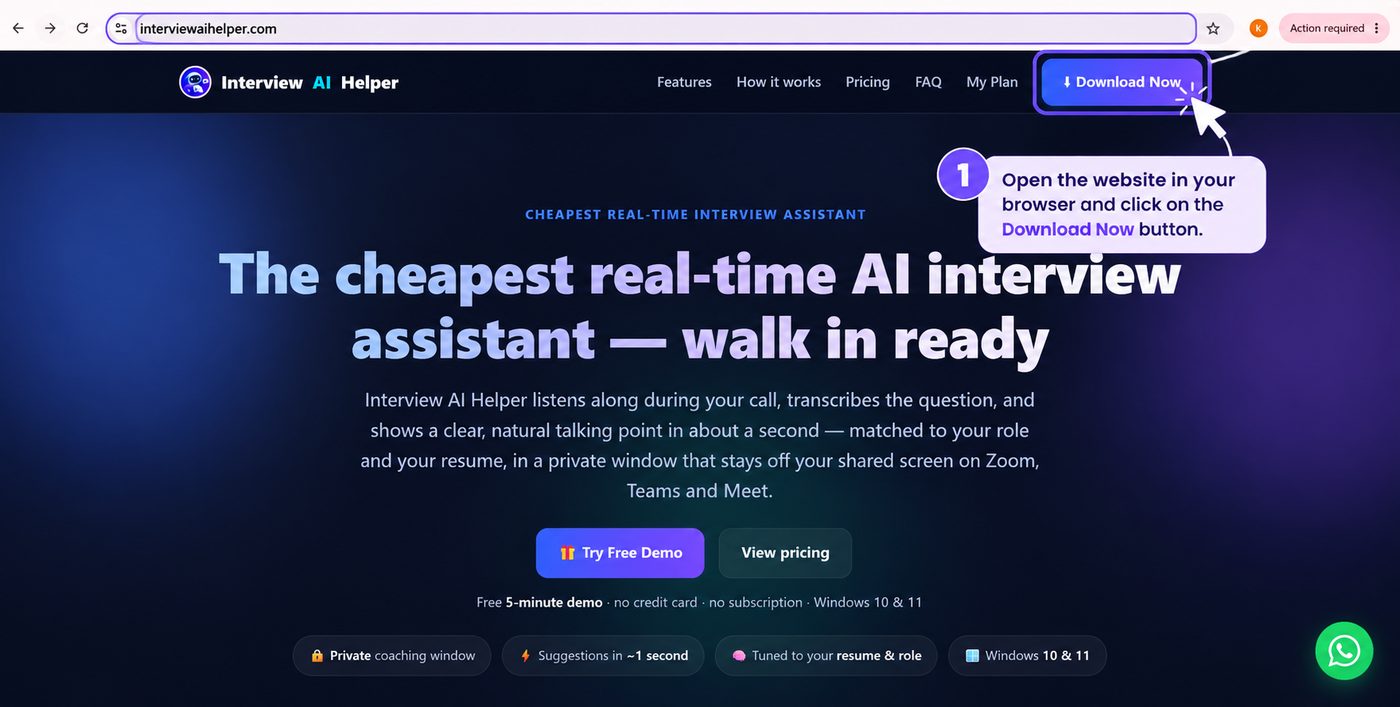
Everything starts from the website — one button, no App Store, no separate download page.
Go to interviewaihelper.com and click Download Now at the top right. This takes you straight to account creation.
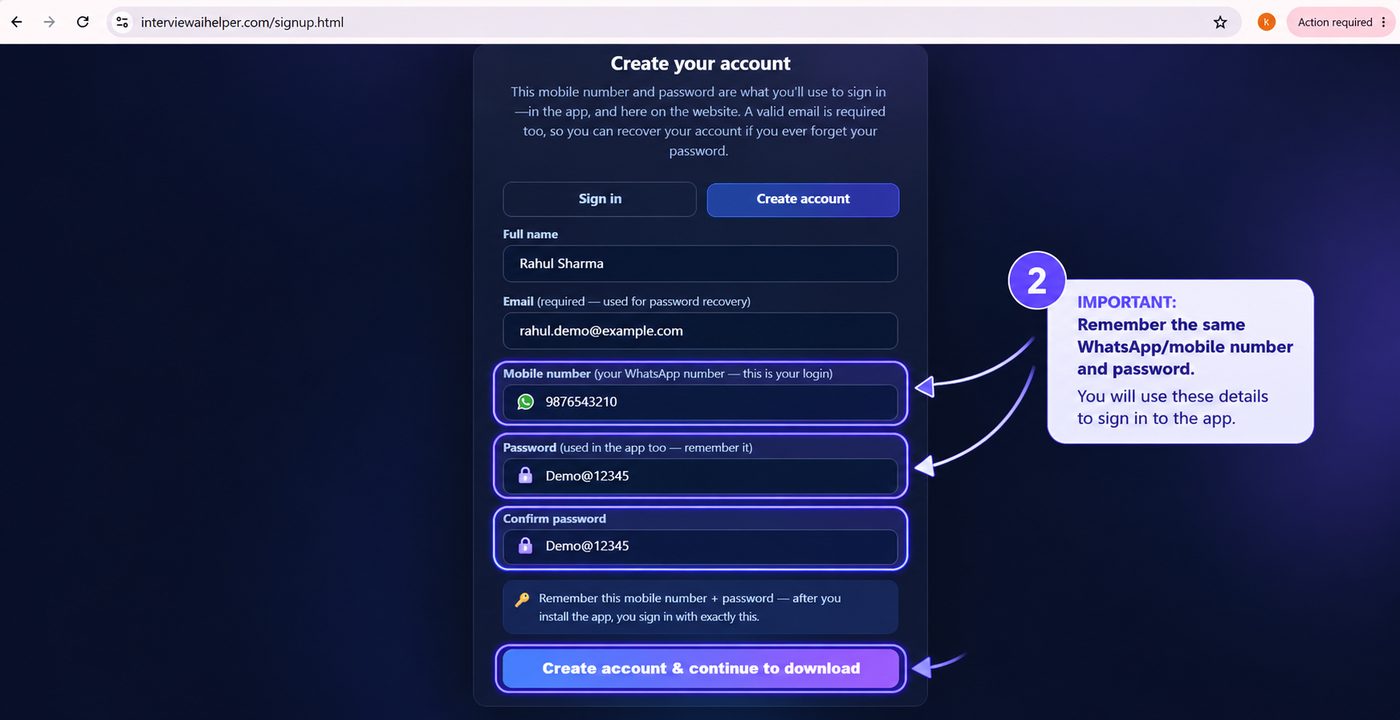
Your mobile number and password are what you'll use to sign in — both in the app and on the website.
Enter your full name, a valid email (for password recovery), your WhatsApp/mobile number, and a password, then click Create account & continue to download.
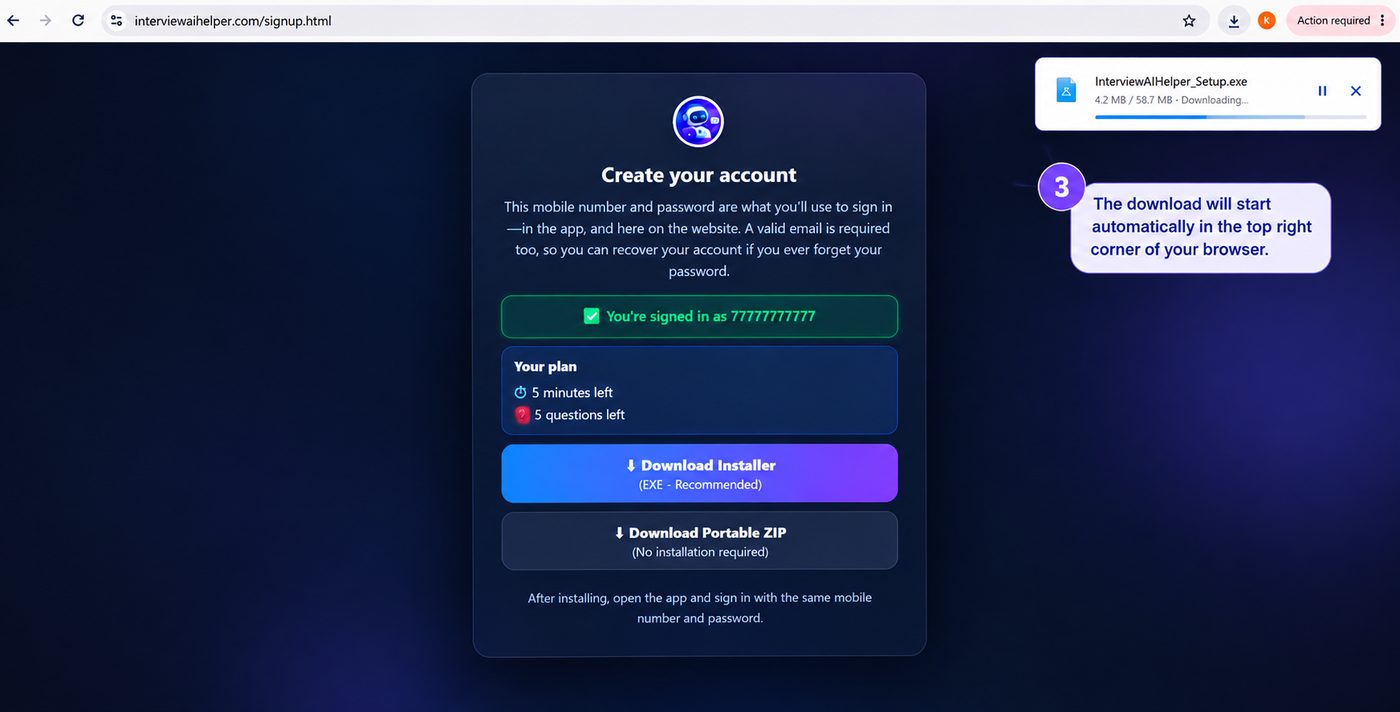
Pick Download Installer (EXE) — recommended — or Download Portable ZIP if you'd rather not install anything. The download starts automatically.
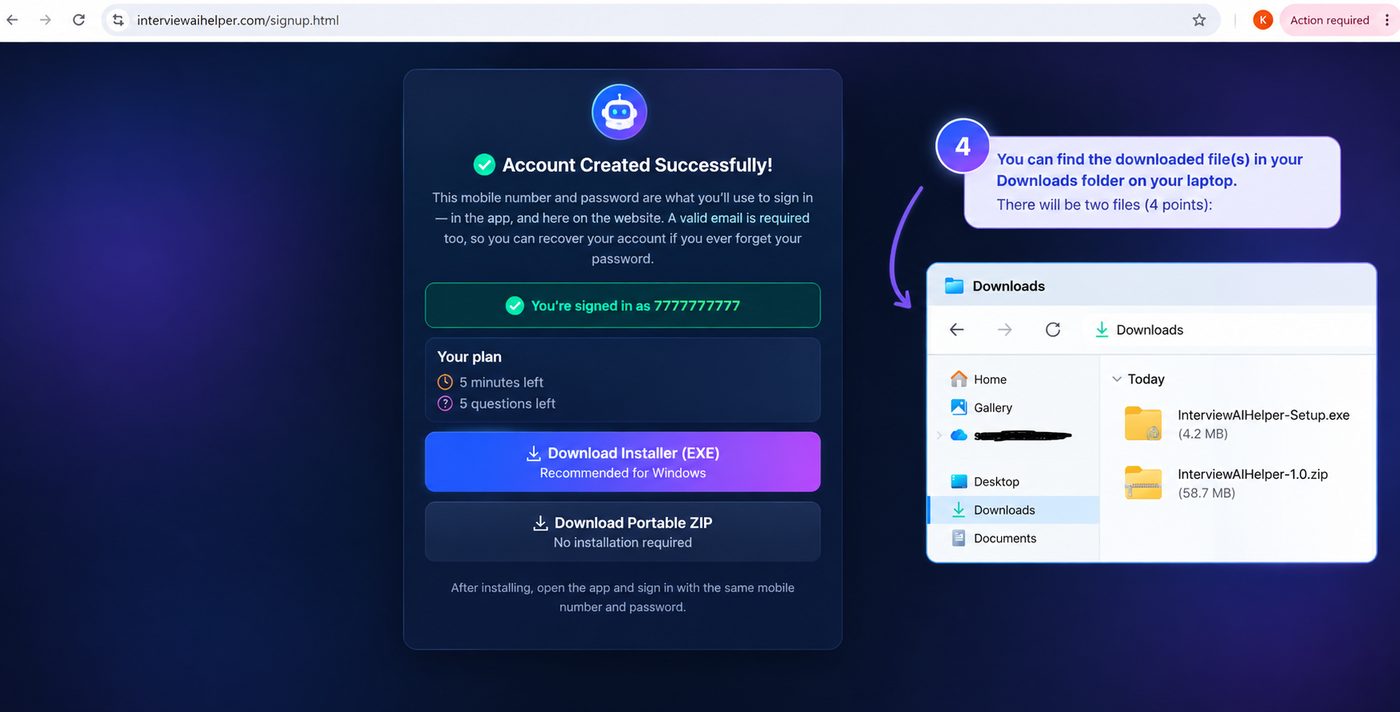
Your file(s) will be in your Downloads folder — an
.exe or a .zip, depending on what you chose.
Two ways to get running, depending on which download you chose.
Double-click the setup file and follow the wizard below.
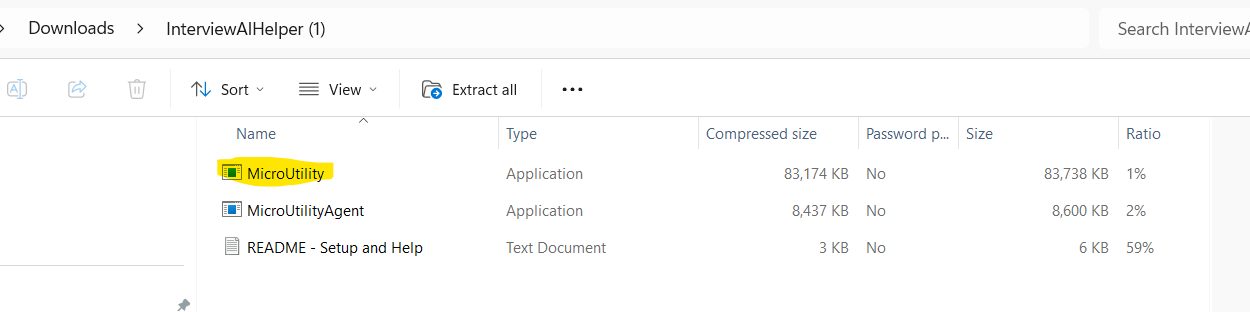
Extract the ZIP, then open MicroUtility first — MicroUtilityAgent runs alongside it automatically.
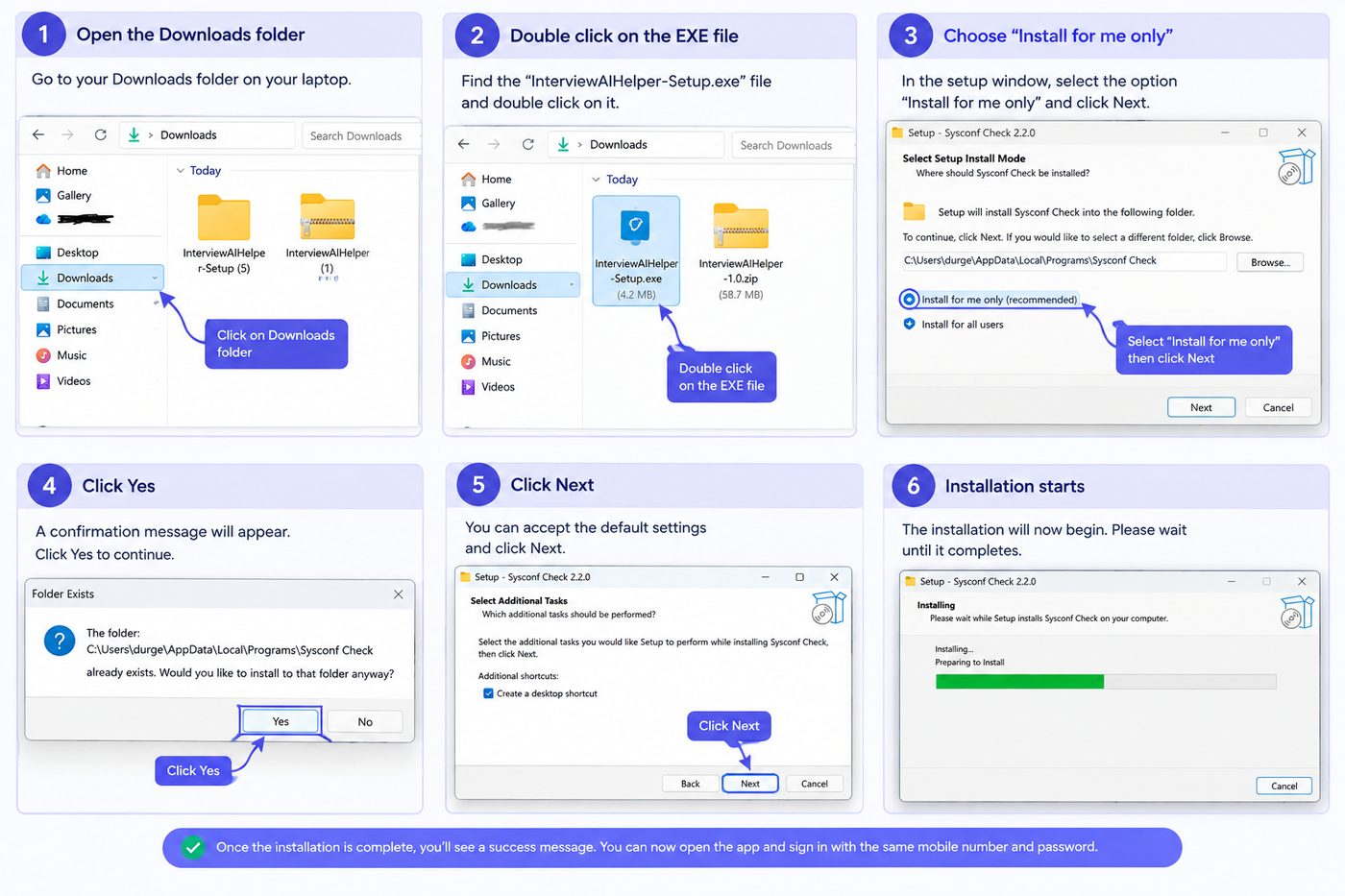
Double-click the setup file, choose Install for me only, click Yes to confirm the folder, then Next to accept the defaults. Installation finishes in seconds.
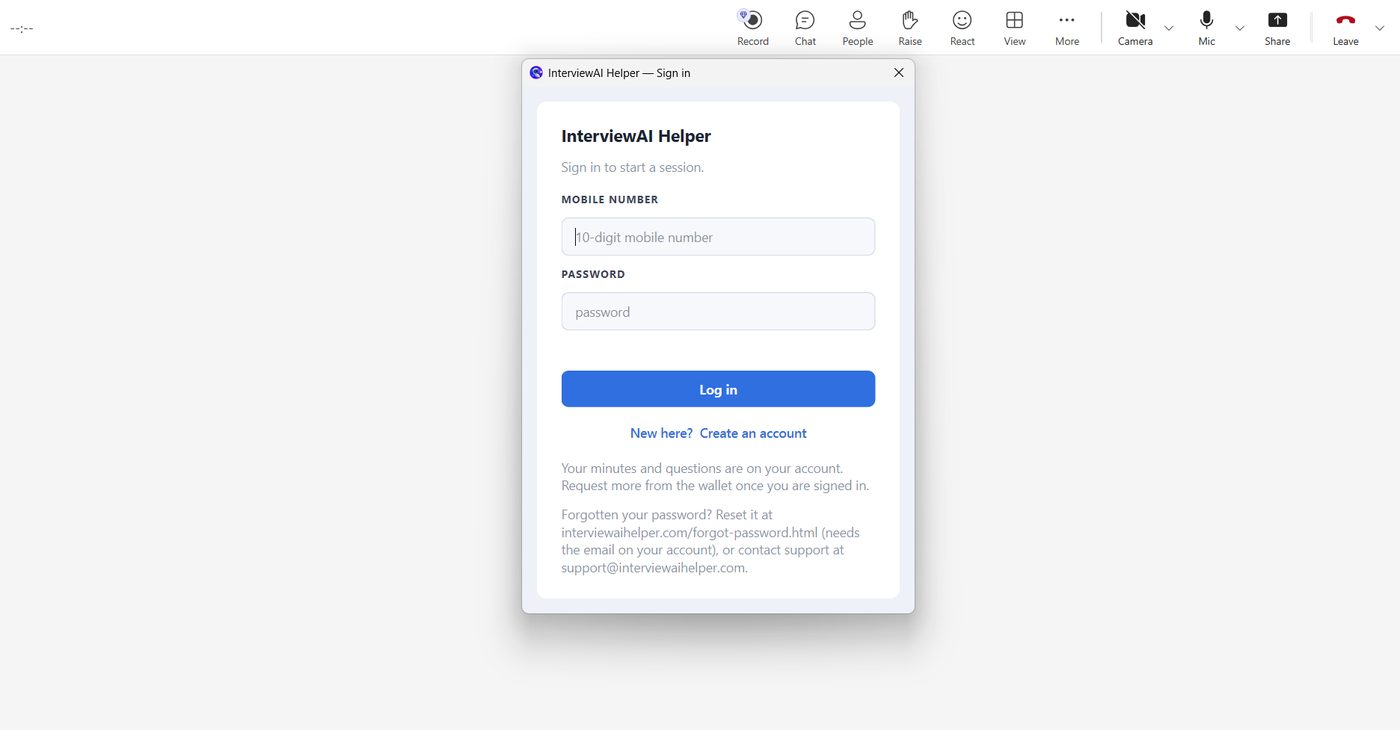
The app opens as a small, private window that floats above whatever else is on your screen — including a live call.
Enter the same details you used at signup and click Log In. Forgot your password? Reset it at interviewaihelper.com/forgot-password.html.
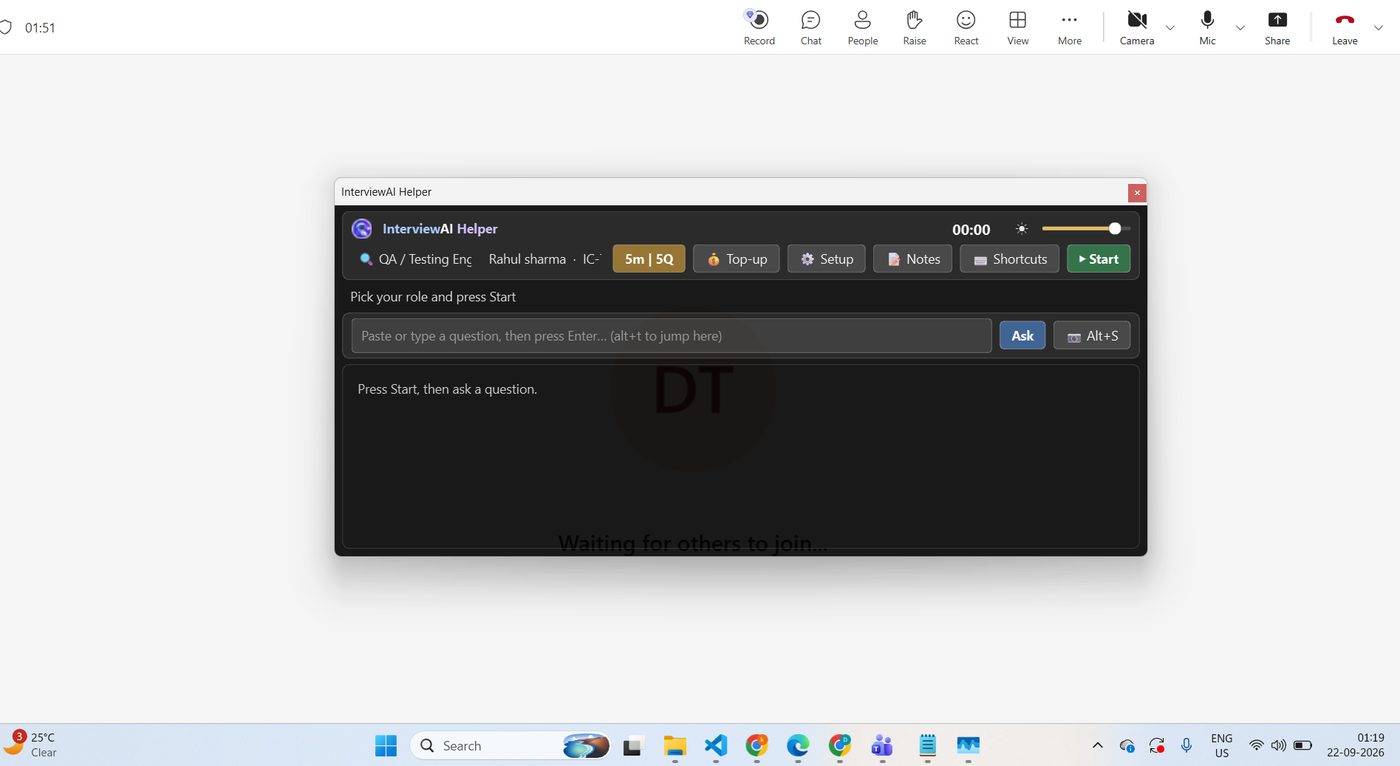
Tell the app who you are and what role you're interviewing for — this is what makes its answers sound like you.
Click ⚙ Setup in the toolbar.
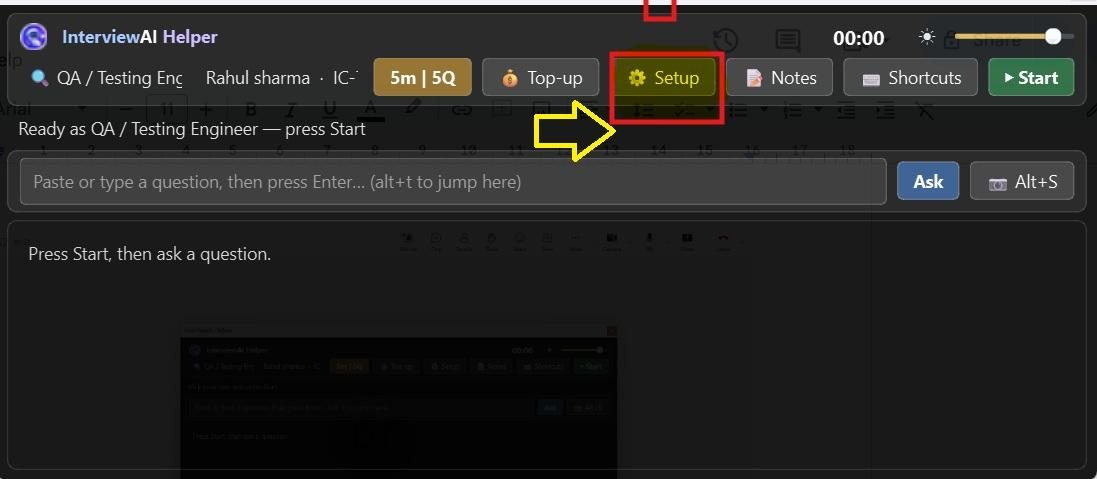
Pick your Domain — Software, QA, Sales, and 20+ more — then upload your Resume/Bio and, if you have it, the Job Description.
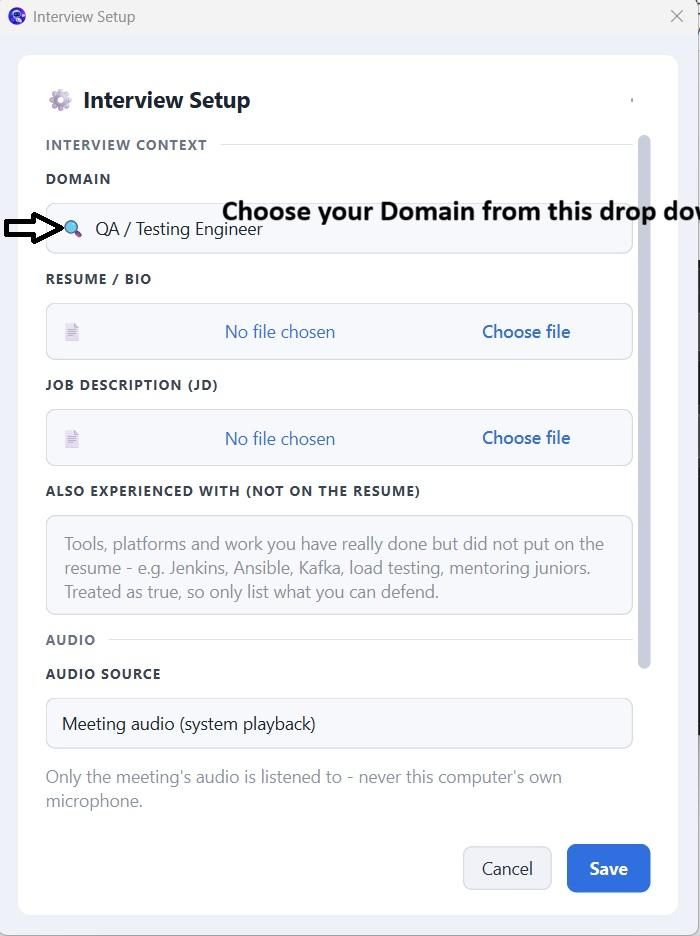
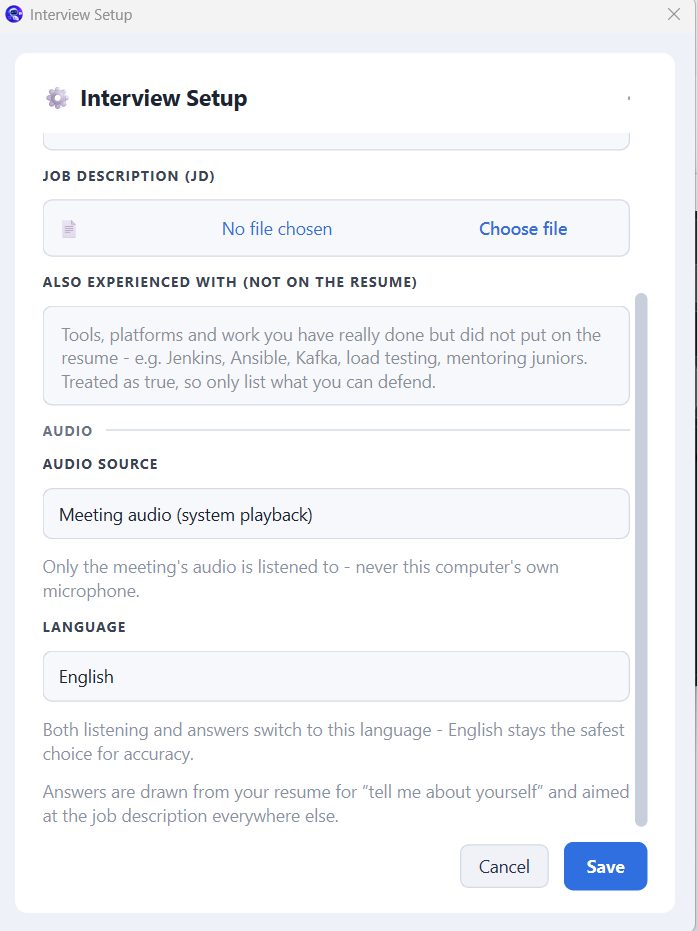
Audio Source stays on meeting audio — never your own microphone. Pick your Language, then click Save.
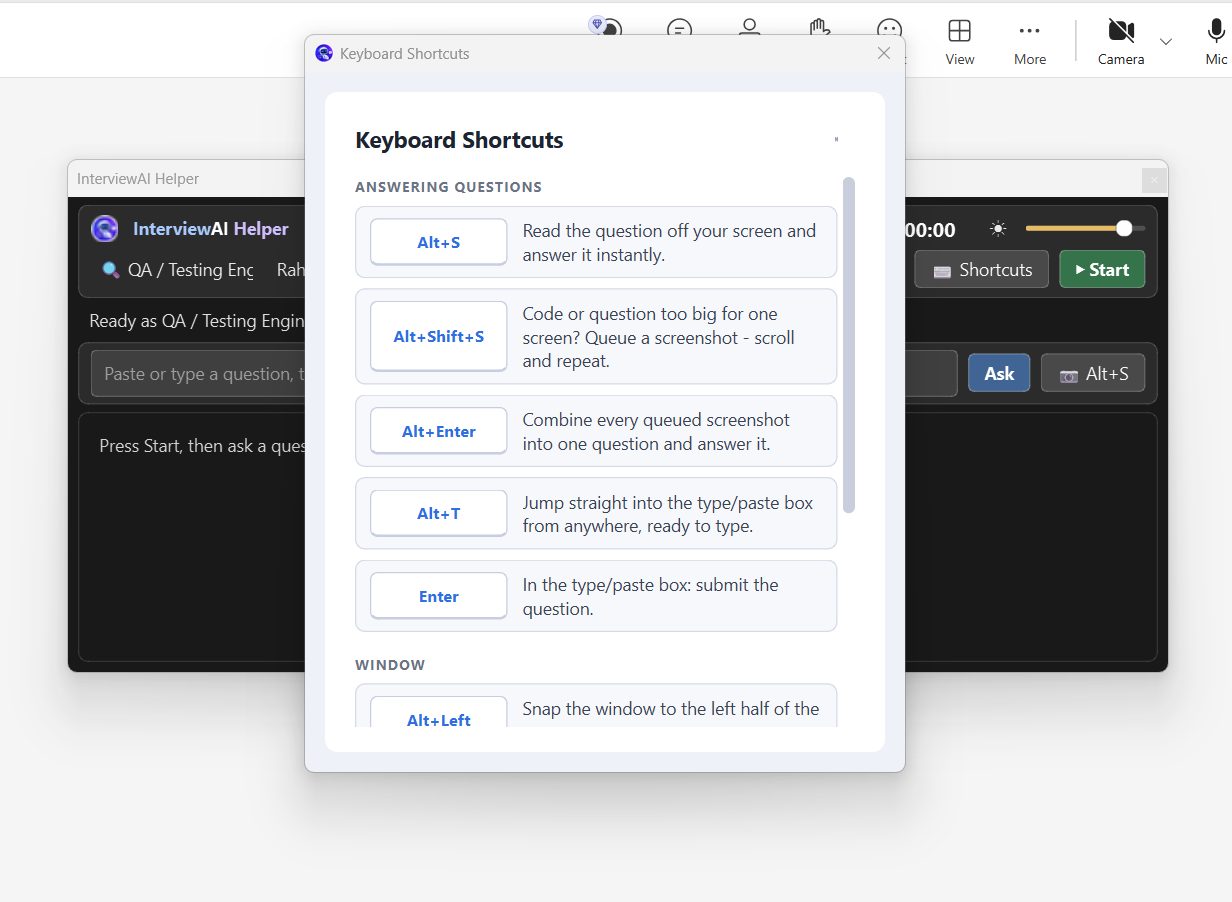
Two keyboard shortcuts run the whole session — worth two minutes to learn before your call.
Click Shortcuts in the toolbar. Alt+S reads whatever question
is on your screen and answers it instantly.
Dim or brighten the window to suit your screen, then click Start to begin listening. Every account gets a free 5-minute, 5-question demo.
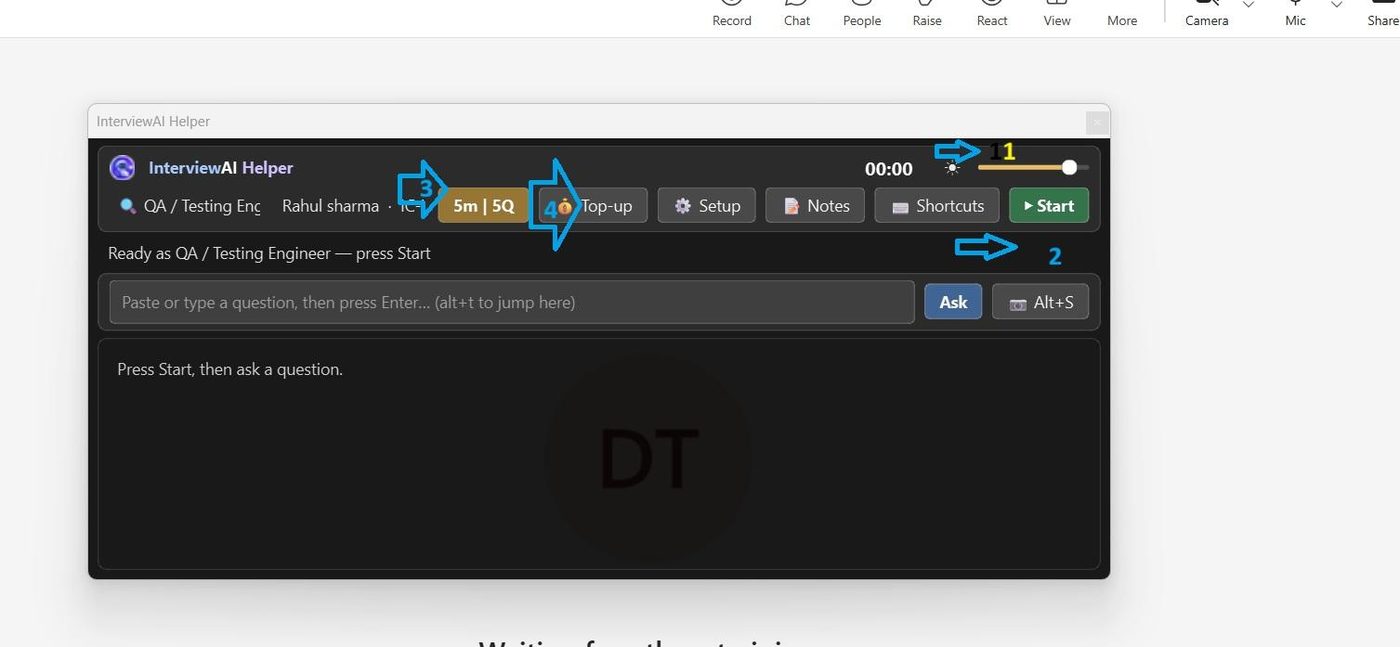
See your balance and top up whenever you need to, right from inside the app.
Click Top-up to see your minutes and questions available. Choose a plan and click Request Top-up — or Buy Now to pay immediately. Any balance never expires.
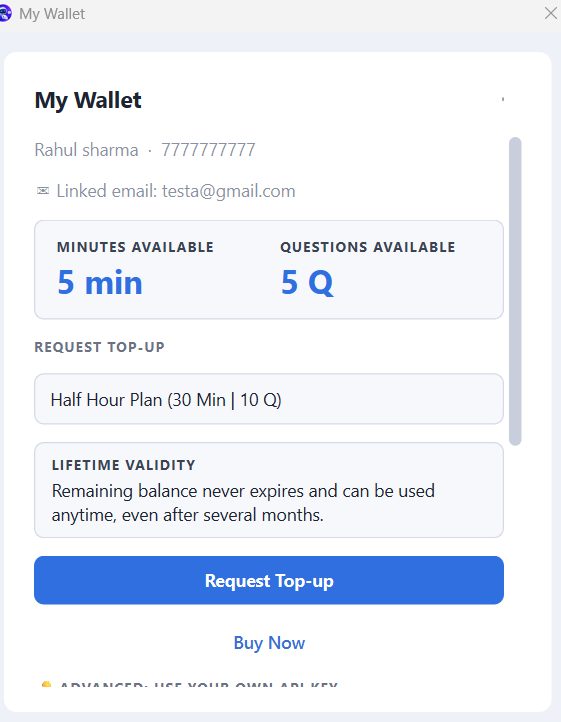
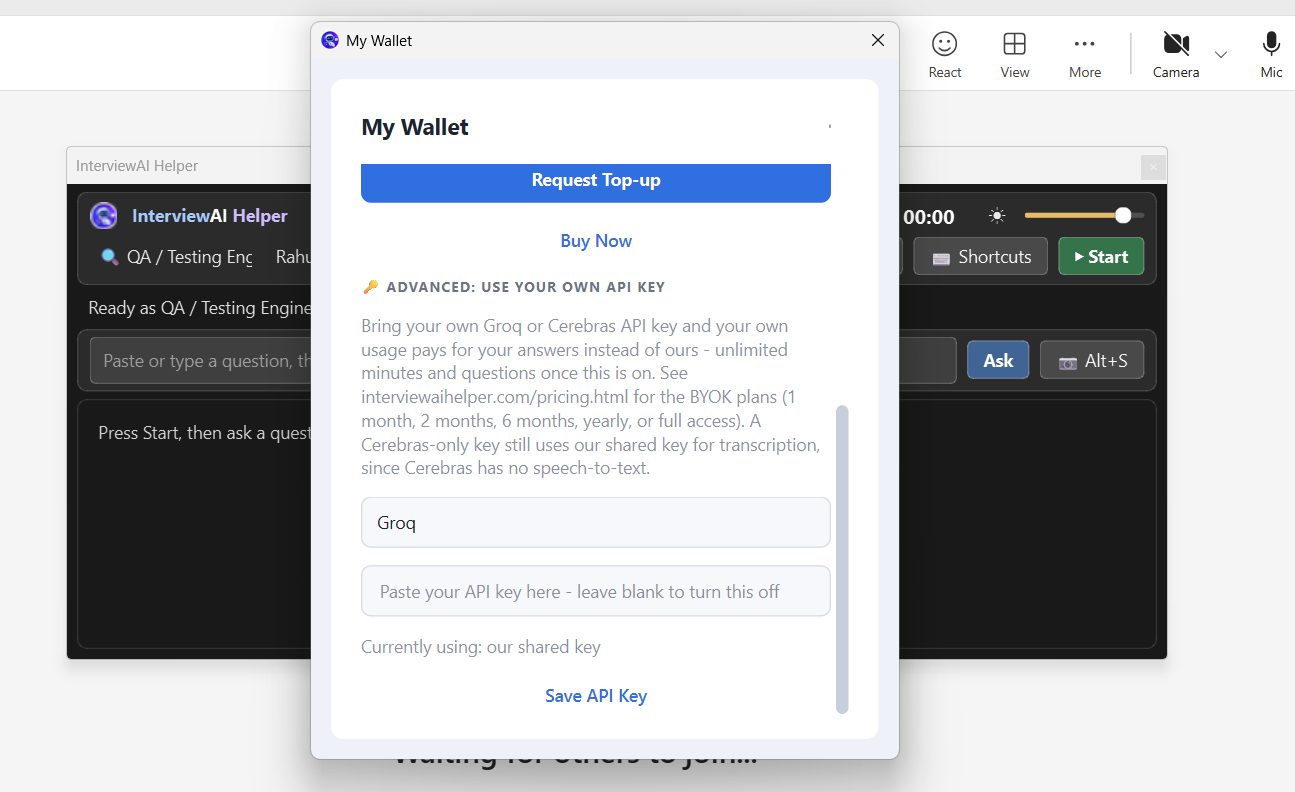
Optional. Using your own free Groq (or Cerebras) key gives you unlimited minutes and questions.
In My Wallet, scroll to Advanced: use your own API key, choose Groq (free, no card needed), paste your key, and click Save API Key.
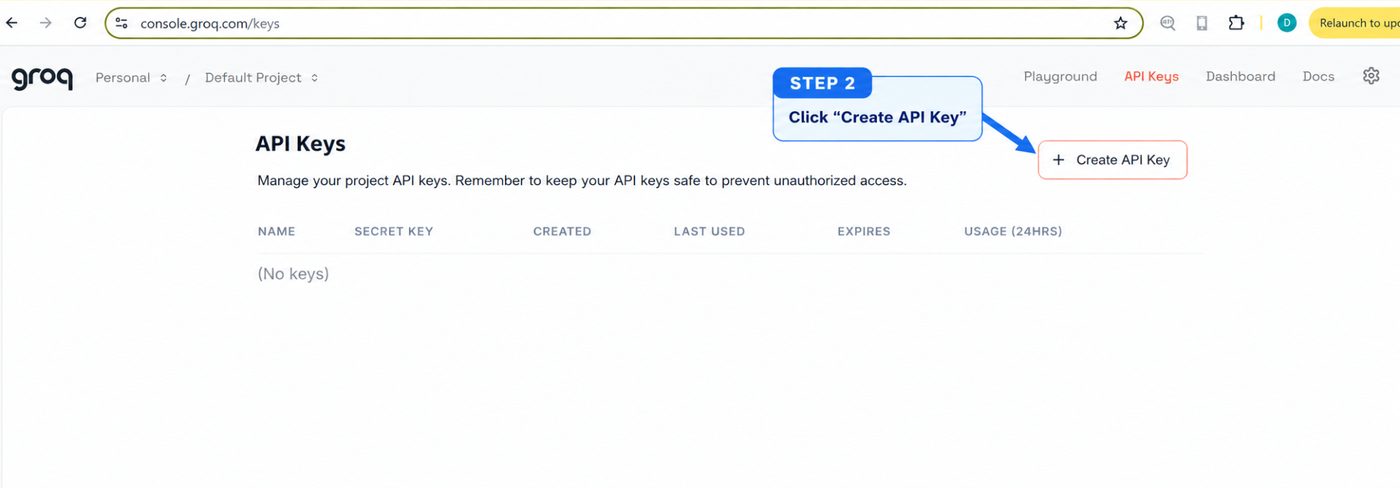
At console.groq.com/keys, click + Create API Key, name it, and click Submit. Copy the key immediately — it's shown only once.
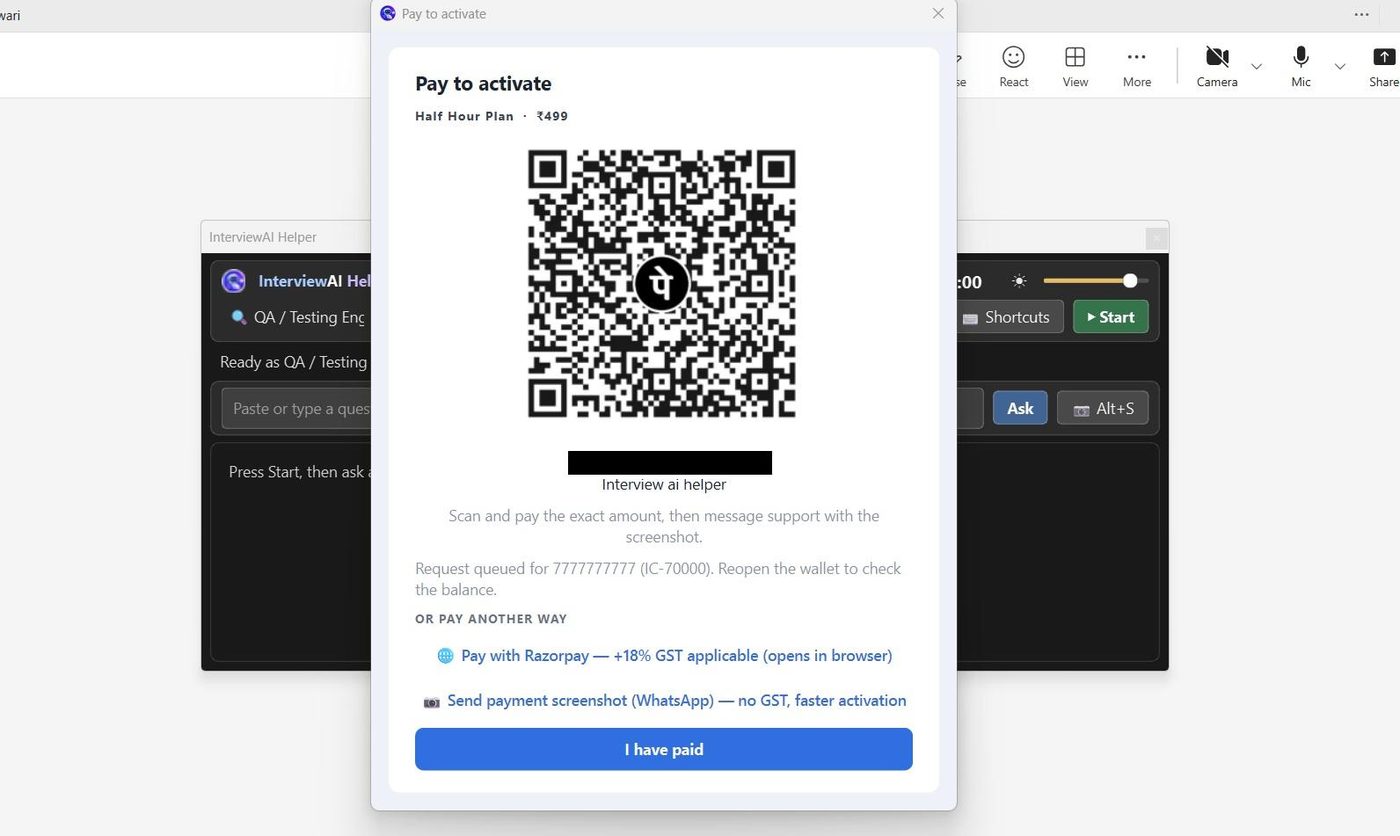
Requesting a top-up opens the payment screen — pay however is easiest for you.
Three ways to pay: scan the UPI QR code, pay with Razorpay (cards/UPI/ netbanking, activates automatically within seconds), or send a payment screenshot to +91 87935 52726 on WhatsApp for manual activation.
Real-time interview help, priced cheaper than every real stealth alternative on the market.
View pricing Download Interview