 Interview
 Visual guide
Install and use it, picture by picture
Real screenshots of the website and the app, with gold numbers on the buttons to press. Takes about 10 minutes, once.
Start here: 6 steps
about 10 minutes, onceDo these six steps once. After that, before each interview you only press Start. Each page shows the real screen, with gold numbers on the buttons to press.
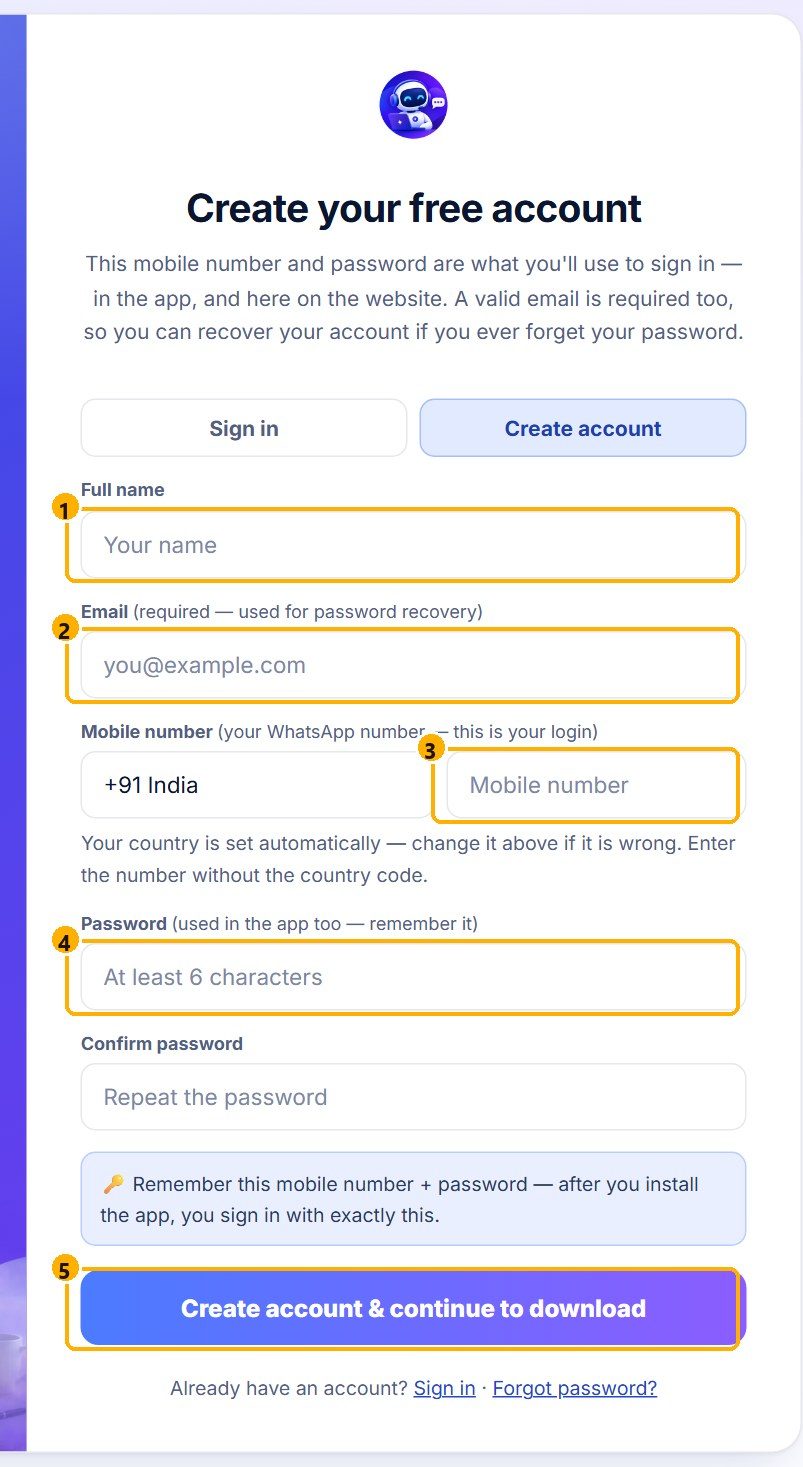
1Create your account
2Download the installer
3Keep the file
4Run the installer
5Sign in to the app
6Set up and press Start
1
Create your account
websiteWhat it isYour account holds your name, your login and your free trial.
Why we do itOne mobile number and password sign you in on the website and in the app, so you only create it once.
- 1Your name
- 2Your email
- 3Your mobile number: this is your login
- 4A password, typed twice
- 5Press Create account
Already registered?
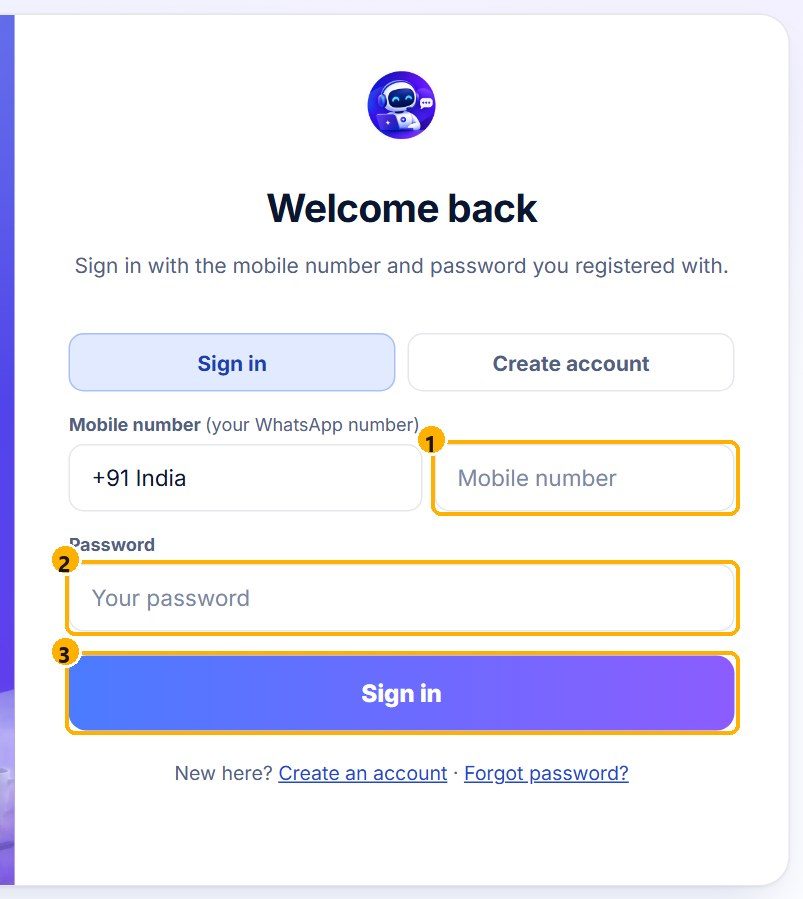
- 1Mobile
- 2Password
- 3Sign in
2
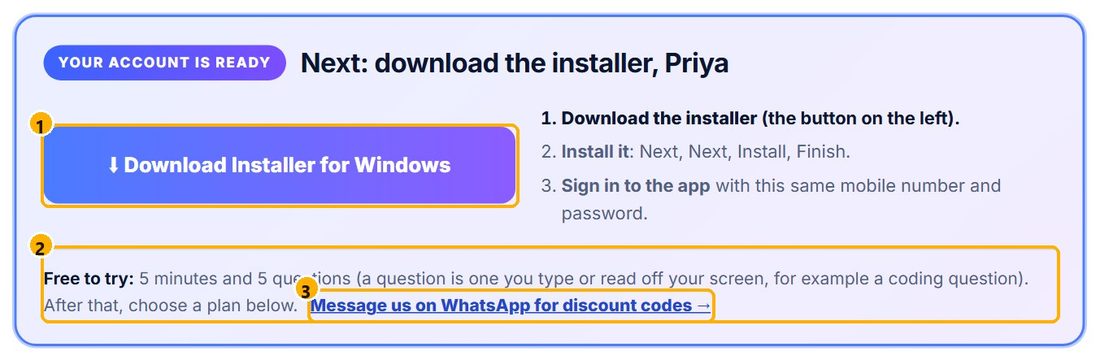
Download the installer
websiteWhat it isThe installer is the setup file that puts the app on your Windows PC.
Why we do itThe app runs on your computer, not in the browser, so it can hear the interviewer and show answers on top of your call.
- 1Press Download Installer. Your download starts.
- 2You start free: 5 minutes + 5 questions
- 3Ask us on WhatsApp for discount codes
While it downloads, open the plans on our website and choose one. Prices change, so the current ones are always on interviewaihelper.com/pricing.html.
3
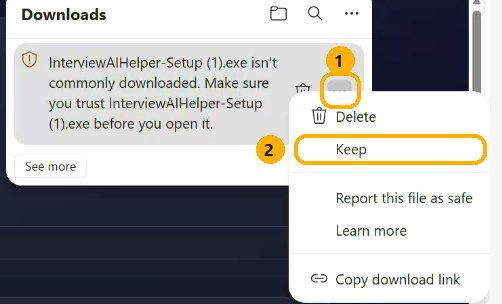
Keep the file
Microsoft EdgeWhat it isYour browser warns about new files that few people have downloaded.
Why we do itIt is a normal warning for a new app. Keep anyway tells the browser you trust this file from our website.
- 1Click the three dots
- 2Choose Keep
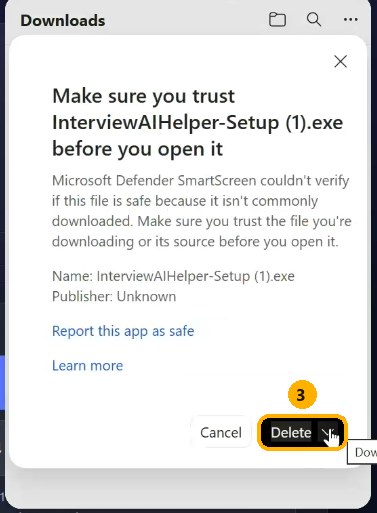
- 3Click the arrow to the right of Delete
- 4Choose Keep anyway
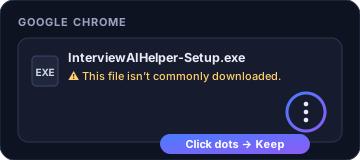
Google Chrome
Click the three dots, then Keep.
Click the three dots, then Keep.
4
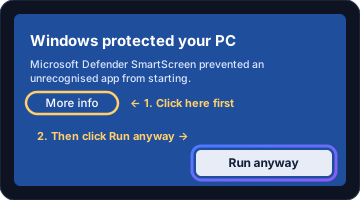
Run the installer
WindowsWhat it isWindows checks new apps before it runs them.
Why we do itRun anyway starts our setup. It installs just for you, so it never asks for an administrator password.
- 1Windows says Windows protected your PC? Click More info
- 2Click Run anyway
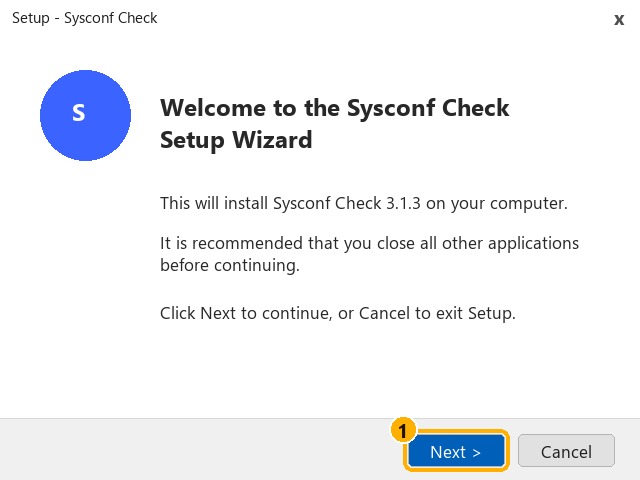
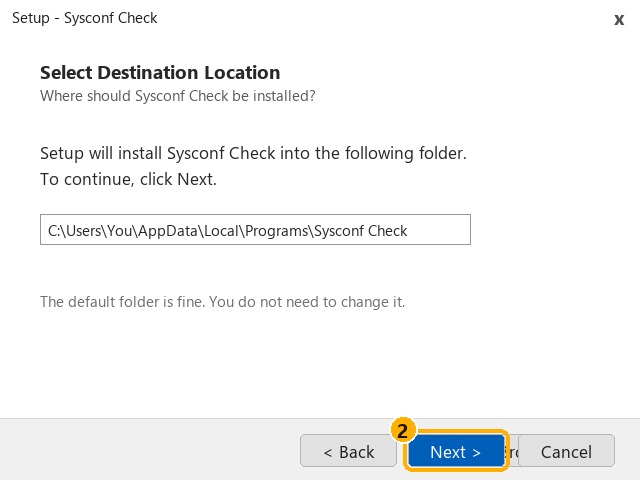
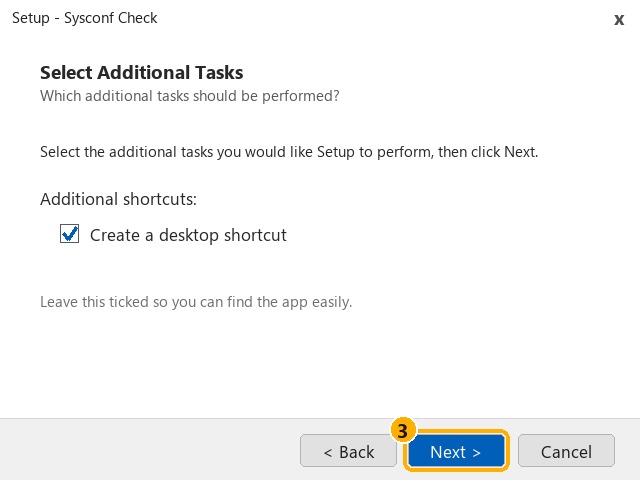
Then the installer
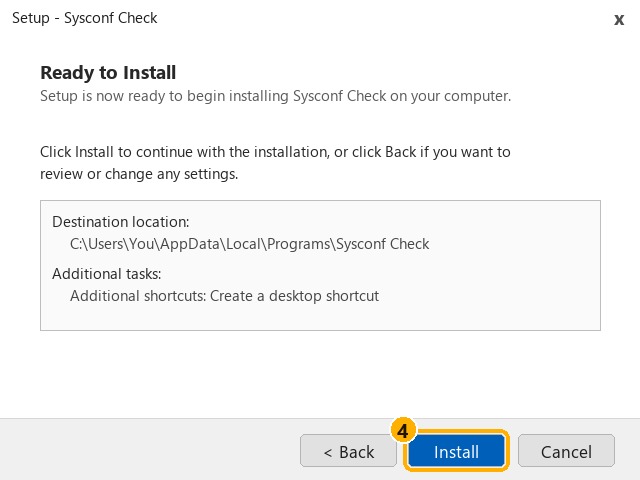
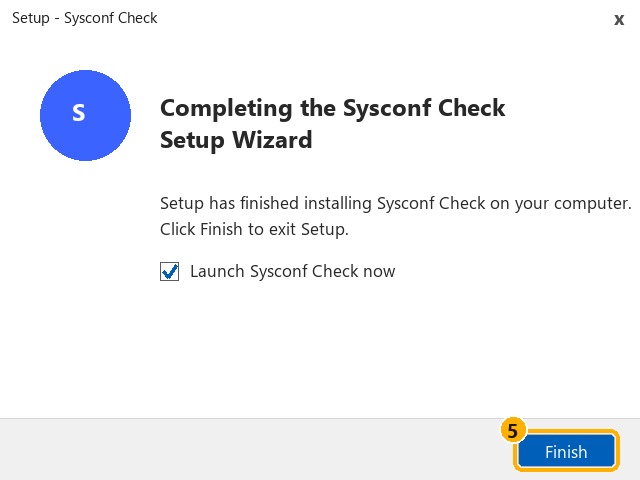
1Next2Next3Next4Install5Finish
The app opens by itself.
The installer window is called Setup - Sysconf Check. That is our installer.
Can't find the file?
Press Ctrl+J in your browser.
Press Ctrl+J in your browser.
Won't open?
Right-click it, Properties, tick Unblock, OK.
Right-click it, Properties, tick Unblock, OK.
The installer, page by page (press the gold button on each)
5
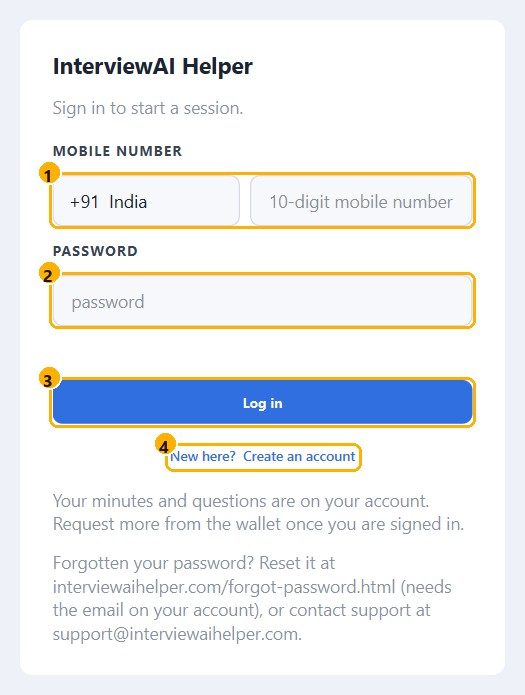
Sign in to the app
appWhat it isThe app asks who you are when it opens.
Why we do itIt loads your plan, your minutes and your settings from your account, so everything you set up is there.
- 1Country code and your mobile number
- 2Your password
- 3Press Log in
- 4No account yet? Create an account
Use the same number and password as on the website.
Then the tour starts by itself
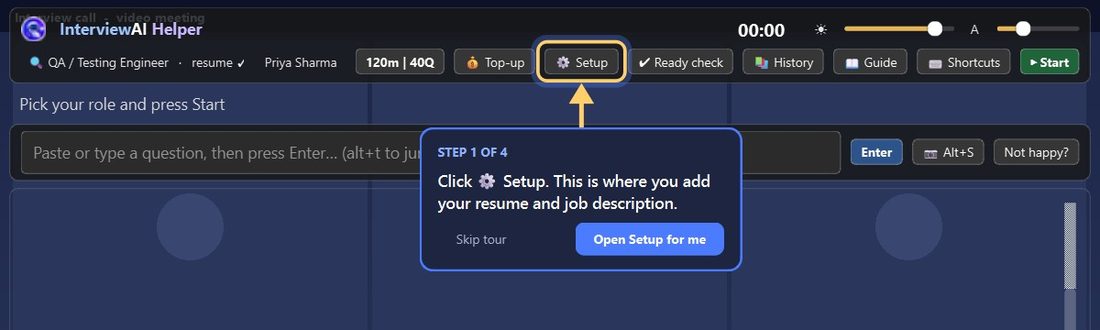
Follow the glowing arrow. Next goes to the next button.
6
Follow the tour
appWhat it isA short tour that points a glowing arrow at each button.
Why we do itLearn the main buttons once, in a minute, so you are not searching for them in the middle of an interview.
1Setup: add your resume
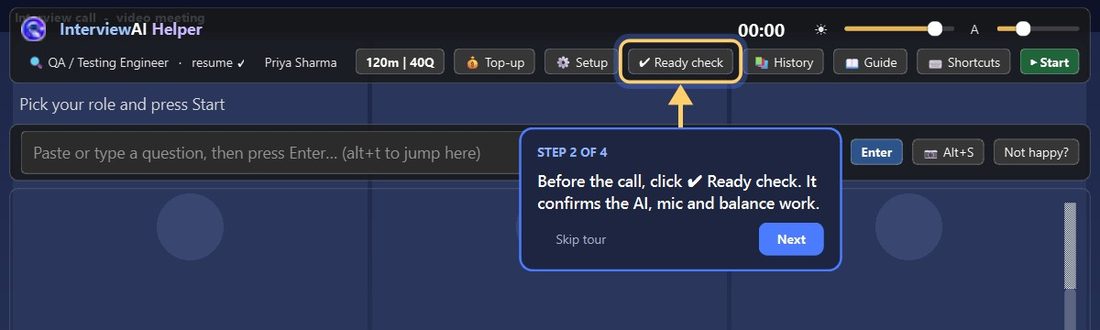
2Ready check: before the call
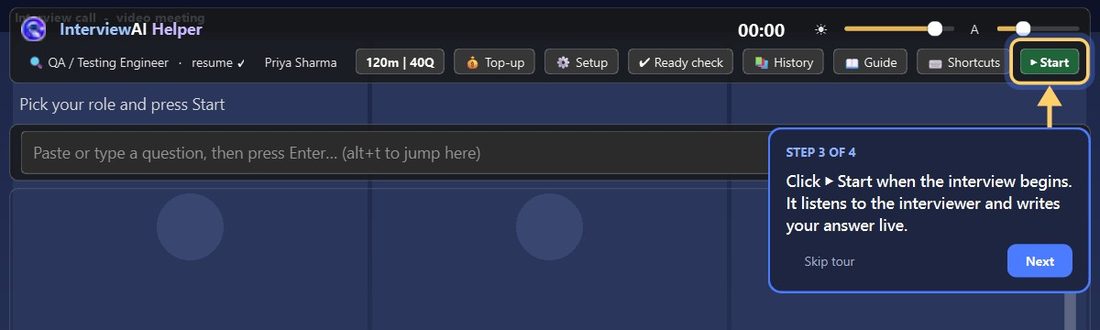
3Start: when the interview begins
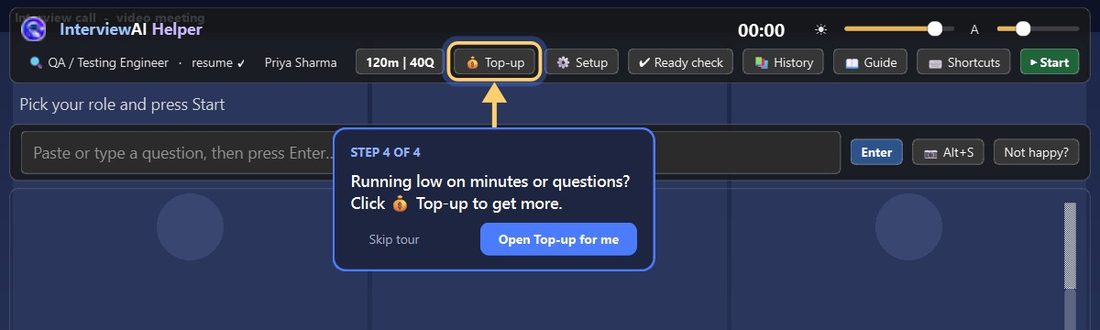
4Top-up: add minutes
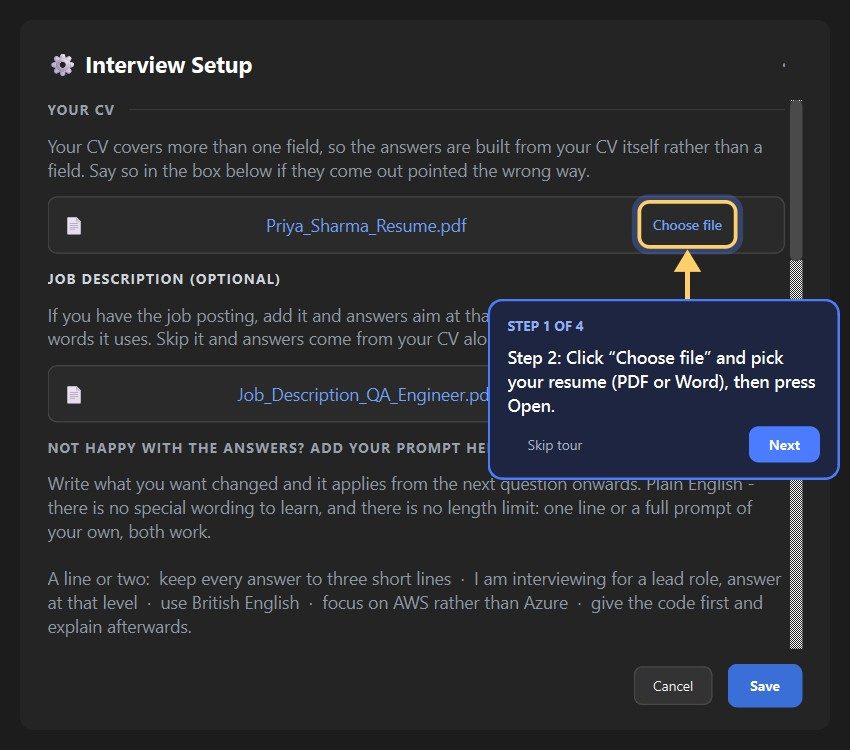
The tour then points inside Setup
Press Next to continue. Replay it any time with the Guide button.
7
Set up once
appWhat it isSetup is where you give the app your resume, the job description and your own prompt.
Why we do itSo the answers use your real experience, aim at the job you want, and sound the way you speak.
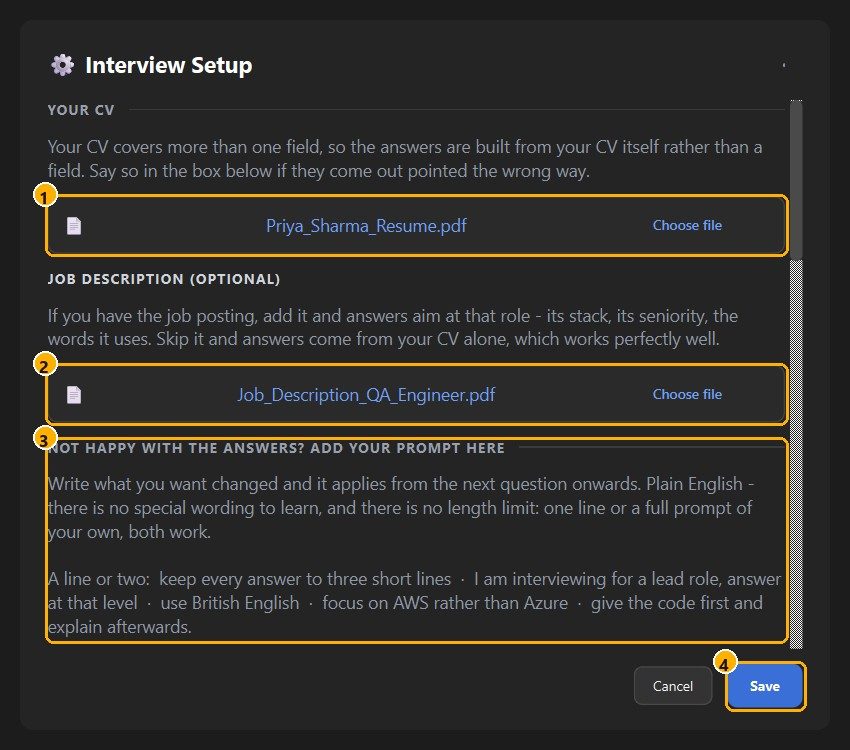
- 1Choose your resume
- 2Add the job description (optional)
- 3Type your prompt
- 4Press Save
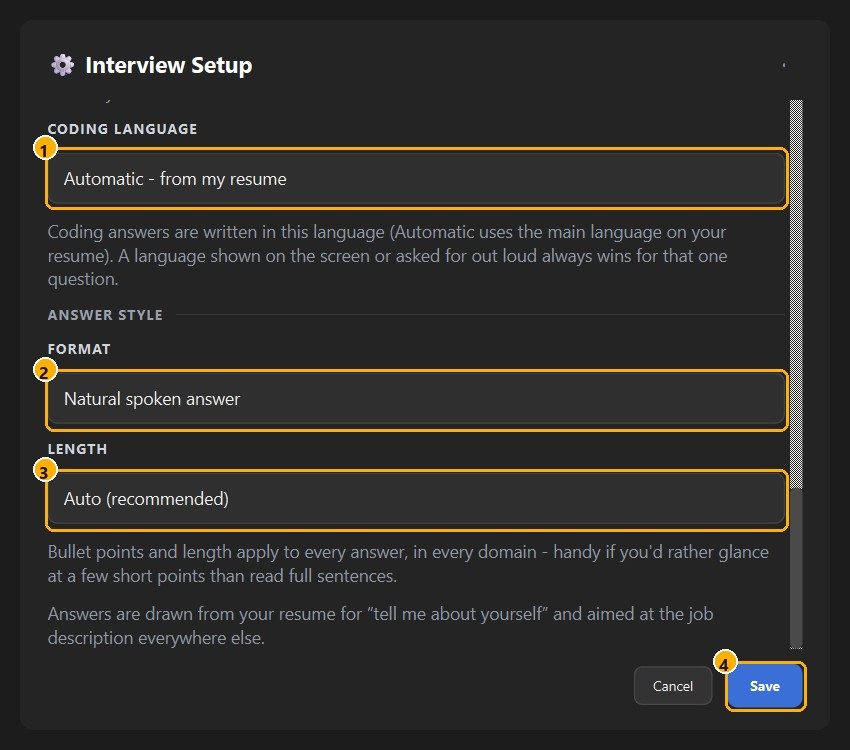
- 1Coding language: Automatic is fine
- 2Format: spoken or bullets
- 3Length: Auto
- 4Press Save
Prompt ideas: “Keep every answer to 3 short lines.” · “Give the code first.” · “I am interviewing for a lead role.”
8
Check, then Start
appWhat it isReady check tests your audio, your plan and the answer service. Start begins listening.
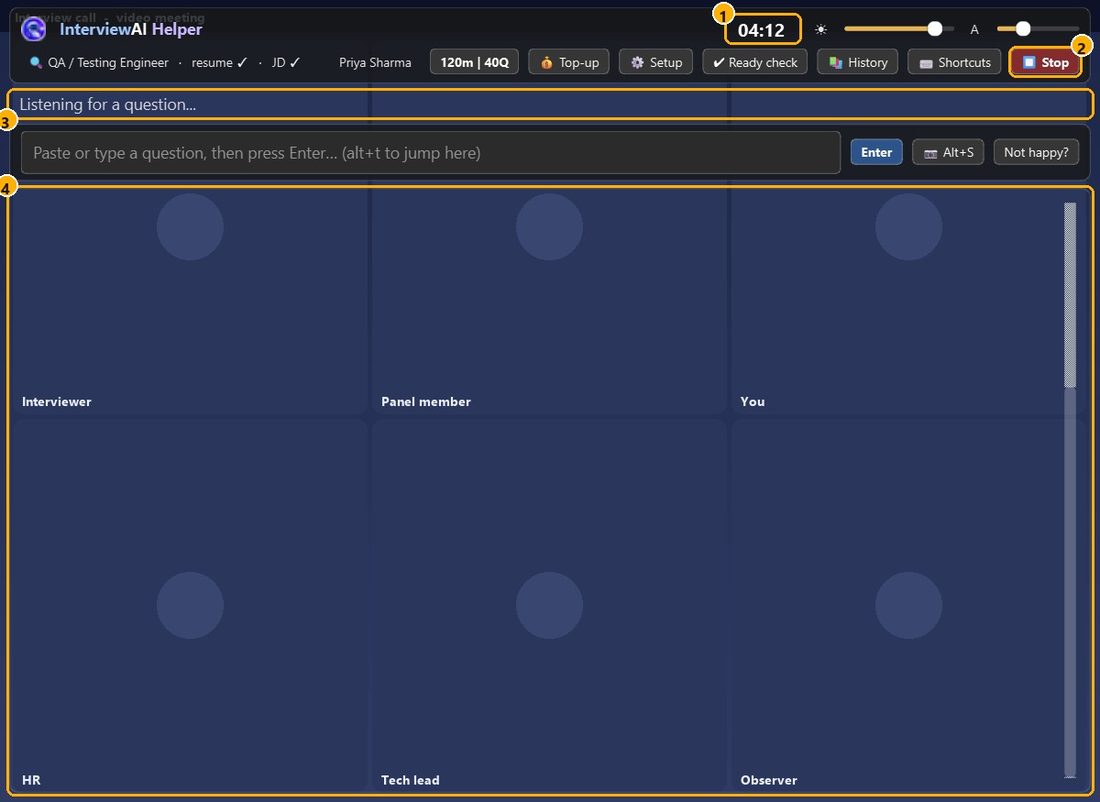
Why we do itFind any problem before the interview, not during it. While it runs, the timer shows the minutes you are using.
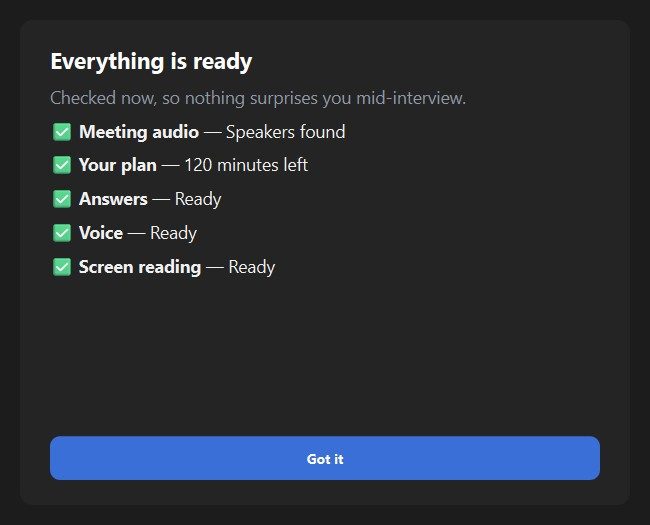
- 1Press Ready check before the call
- 2All green ticks? You are ready
- 1The timer runs
- 2Press Stop to pause
- 3The status tells you what it is doing
- 4Read the answer. Say it in your words
Press Start when the interview begins. The app listens to the interviewer through your speakers, never your microphone.
9
Your window, button by button
appWhat it isA map of every control in the window.
Why we do itKnow where each button is before you need it, so you can act in a second during the interview.
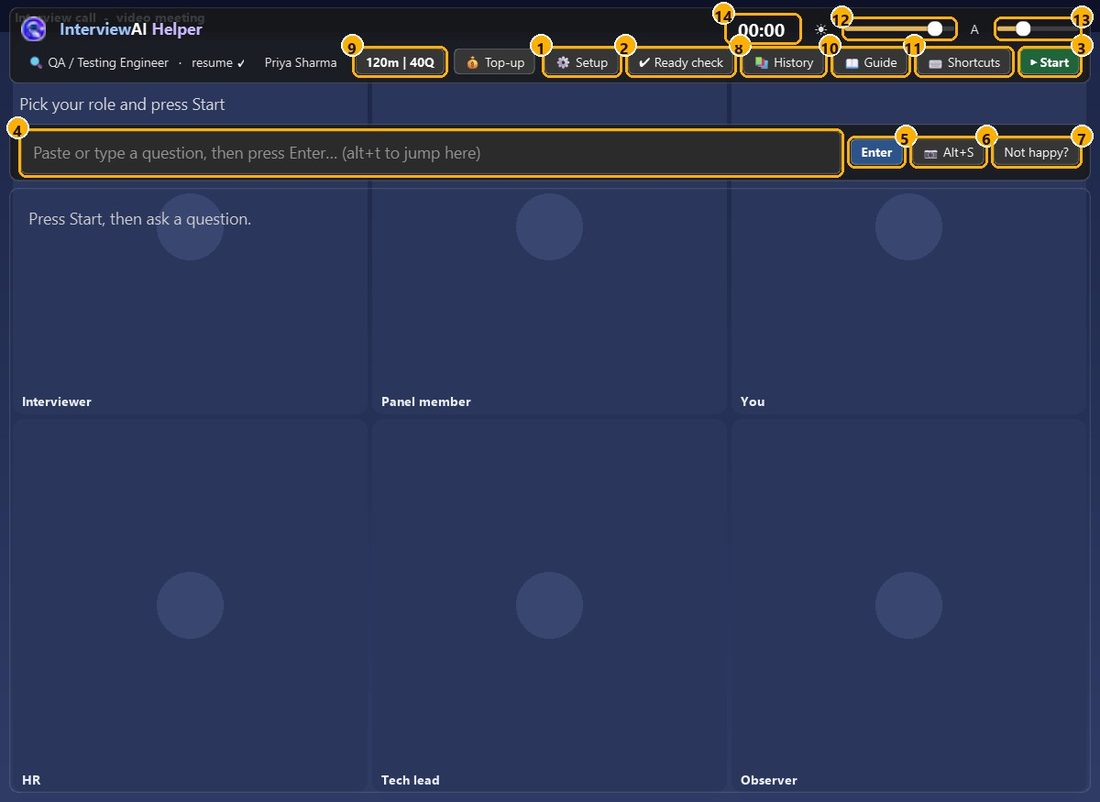
- 1Setup
- 2Ready check
- 3Start / Stop
- 4Question box
- 5Enter
- 6Alt+S: read screen
- 7Not happy?
- 8History
- 9Balance and Top-up
- 10Guide (replay tour)
- 11Shortcuts
- 12Brightness
- 13Text size
- 14Timer
10
Ask a question: 3 ways
appWhat it isThree ways to give the app a question.
Why we do itYou always have one that works: voice when it can hear the interviewer, typing when you want control, Alt+S for questions or code on your screen.
1Just listen
Press Start. When the interviewer finishes a question, the answer appears.
2Type or paste

Press Alt+T, type the question, press Enter.
3Read the screen
Press Alt+S. It reads the question off your screen, even code.
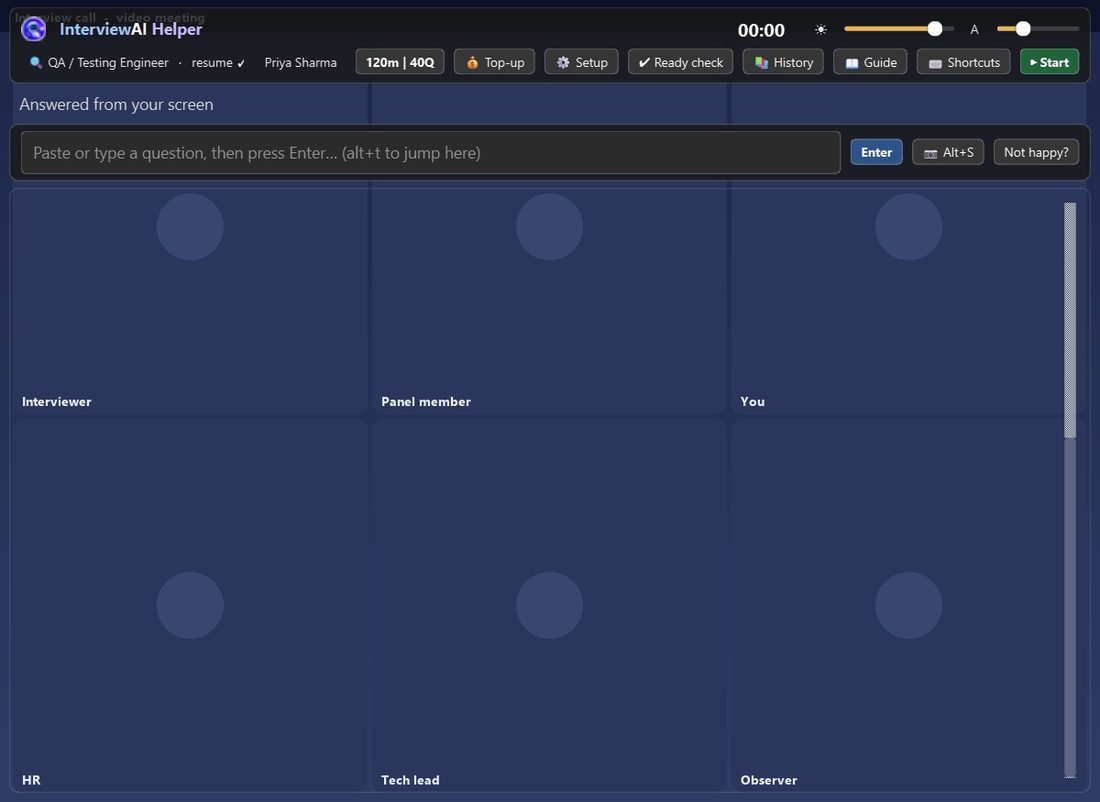
An answer after Alt+S: a short line, then the code
Long problem? Press Alt+Shift+S on each screen, then Alt+Enter to combine them. · Two questions on screen? It reads only the newest.
11
Fix an answer. Review later.
appWhat it isNot happy? changes the style of answers. History and Session notes keep what happened.
Why we do itFix an answer in seconds, and revise from your own questions and answers after the interview.
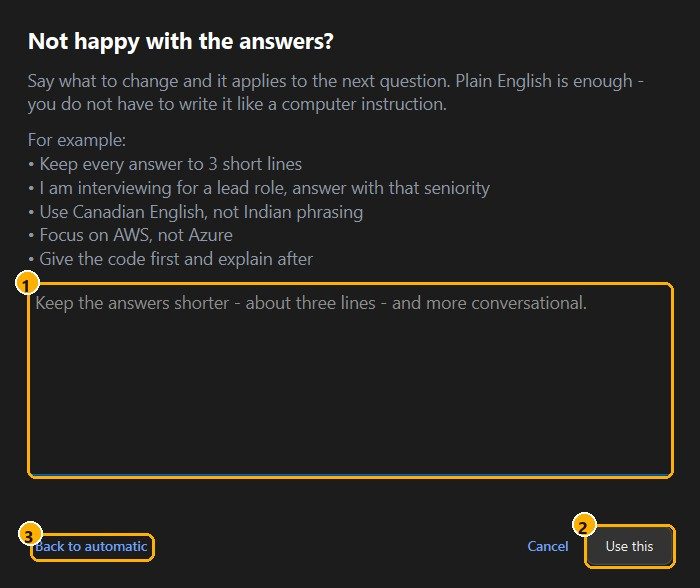
- 1Say what to change, in plain English
- 2Press Use this: it applies to the next answer
- 3Back to automatic undoes it
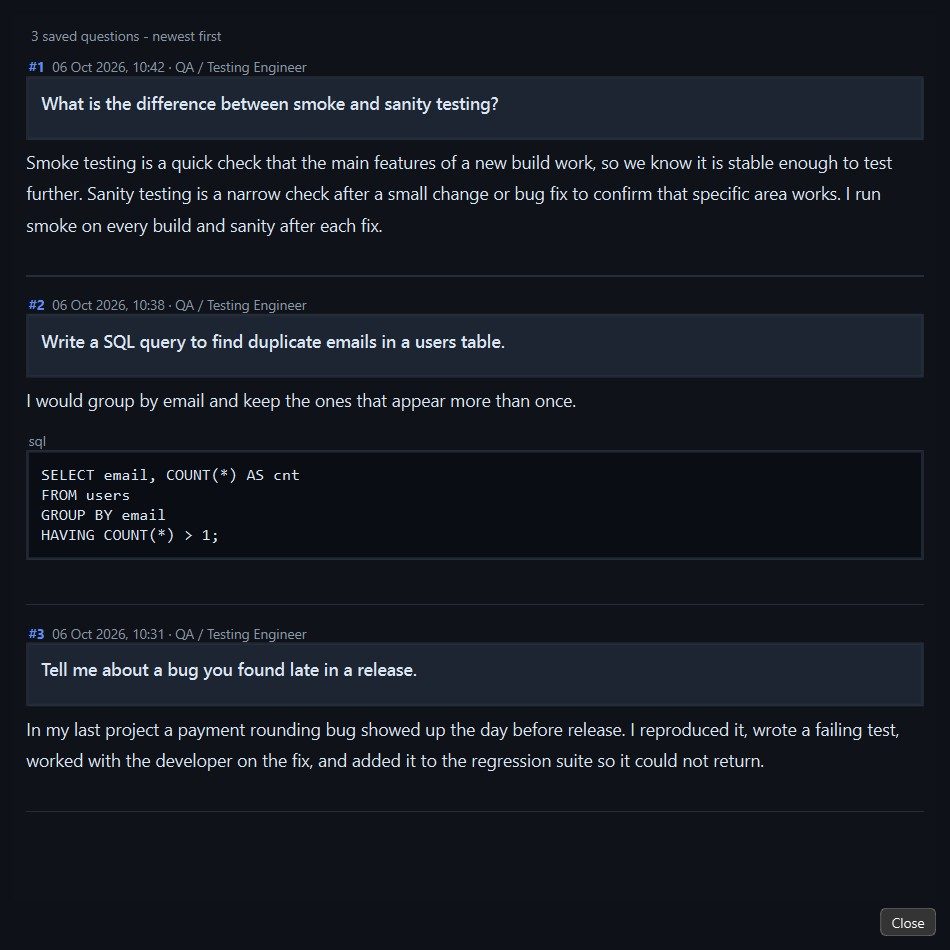
- 1History keeps every question and answer
- 2Code is kept in its own block
After you press Stop
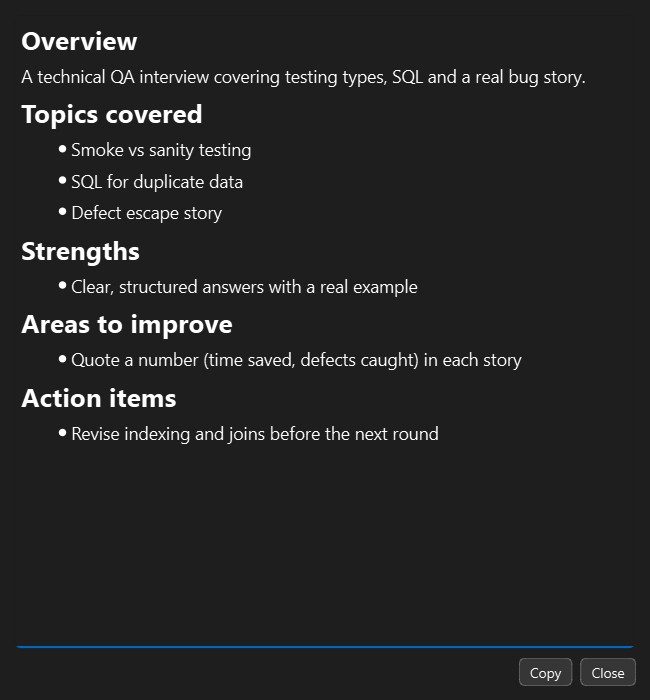
- 1Session notes: topics, strengths, what to improve
12
Check your balance, add more
app + websiteWhat it isYour balance of minutes and questions, and where you add more.
Why we do itCheck it before an important interview so you do not run out. Current prices are always on the website.
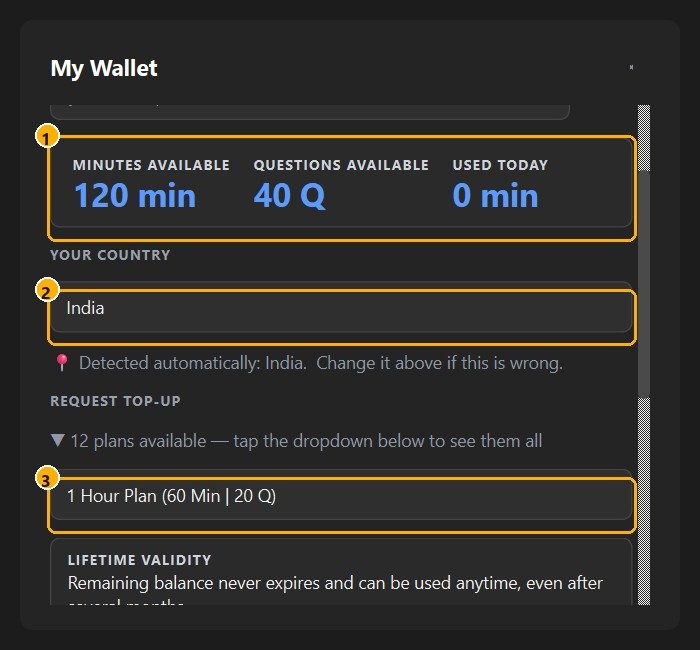
- 1Your minutes and questions left
- 2Your country decides the prices you see
- 3Pick a plan, then Request Top-up
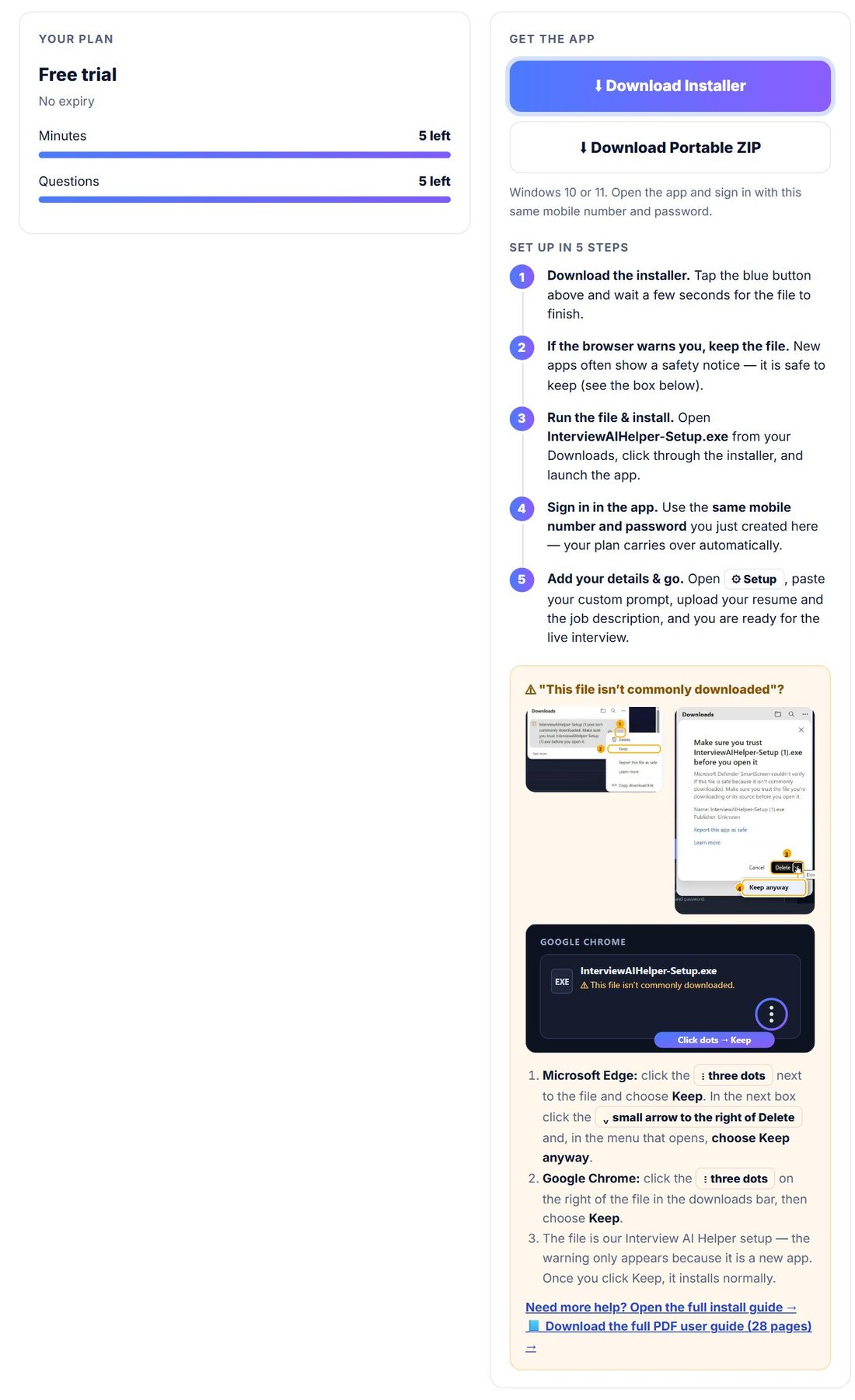
The same balance is on your account page
Pay by: UPI / QR, cards (Razorpay), or send a payment screenshot on WhatsApp.
Current prices and offers are always on interviewaihelper.com/pricing.html.
13
Keyboard shortcuts
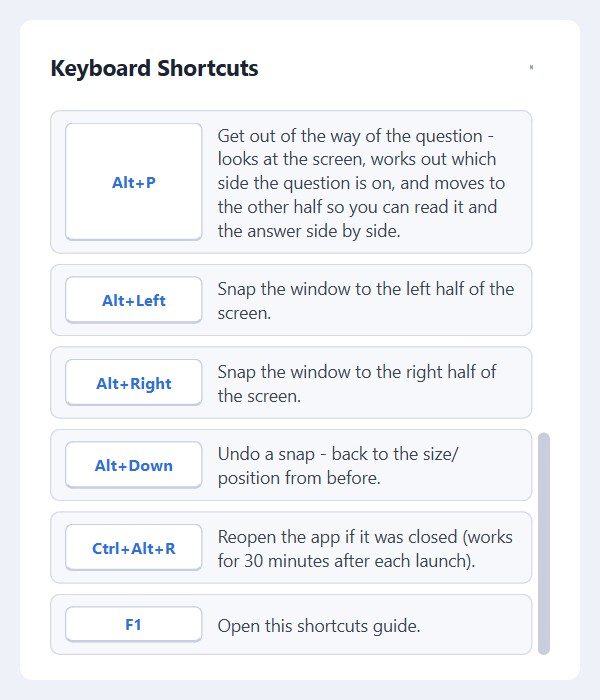
press F1 in the appWhat it isKeyboard shortcuts for the actions you use most.
Why we do itA key press is faster than hunting for a button on a live call. Ctrl+Space hides the app instantly.
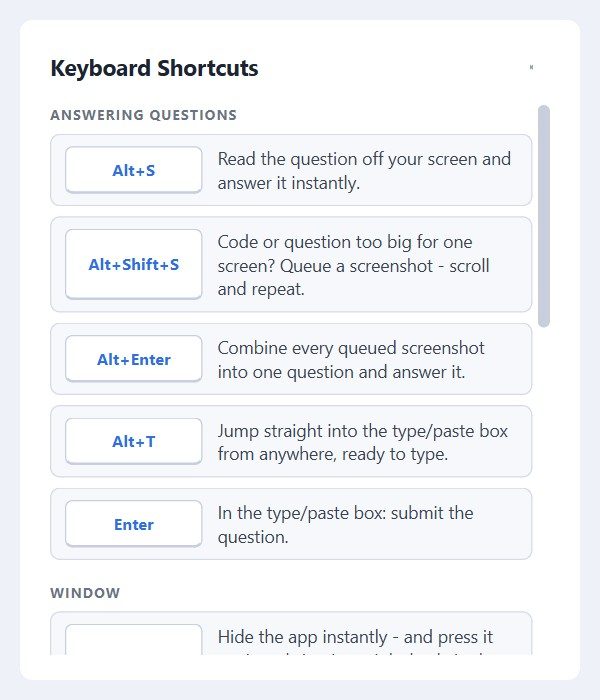
Alt+SRead the screen
Alt+TJump to the question box
Ctrl+SpaceHide / show the app
Alt+Left / RightSnap to a side
Alt+DownUndo the snap
Alt+PMove away from the question
Ctrl+Up / DownEarlier / later answer
Alt+Shift+S, Alt+EnterSeveral screens, one question
Ctrl+Alt+RReopen the app
F1Show this list
14
Something wrong? Quick fixes
What it isThe most common problems and the quickest fix for each.
Why we do itMost issues are a warning or a setting. This page saves you waiting for support.
| Problem | Do this |
|---|---|
| Browser won't keep the file | Three dots, Keep. Then the arrow right of Delete, Keep anyway. |
| “Windows protected your PC” | More info, then Run anyway. |
| File won't open | Right-click, Properties, tick Unblock, OK. |
| Antivirus removed it | Open its quarantine and Restore InterviewAIHelper. |
| Can't sign in | Mobile without country code. Reset the password on the website. |
| No answers appear | Press Ready check. Fix any red item. |
| It can't hear the interviewer | Set your speakers or headphones as the Windows default output. |
| Alt+S shows a warning | Your meeting tool blocks capture. Type or paste the question. |
| Prices in dollars | Top-up, set Your country to India. |
| Balance not updated | Click the balance. If you paid, WhatsApp us the screenshot. |
Full pictures: interviewaihelper.com/install-help.html
We are here to help
WhatsApp / phone
+91 87935 52726
Email
support@interviewaihelper.com
Hours
Monday to Saturday, 10:00 to 19:00 IST
Website
interviewaihelper.com
Use it responsibly. Some interviews and employers do not allow AI help. Follow the rules of every interview you take.
Interview AI Helper is a product of KDADS Solutions Private Limited, Nagpur, India. Version 3.1.3, October 2026.