 Interview AI Helper
Install help
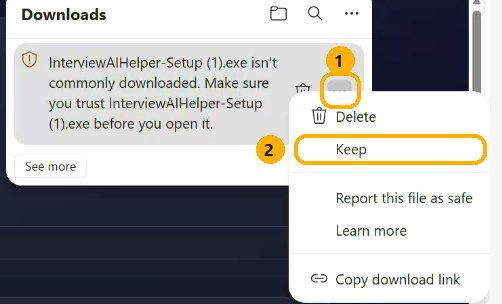
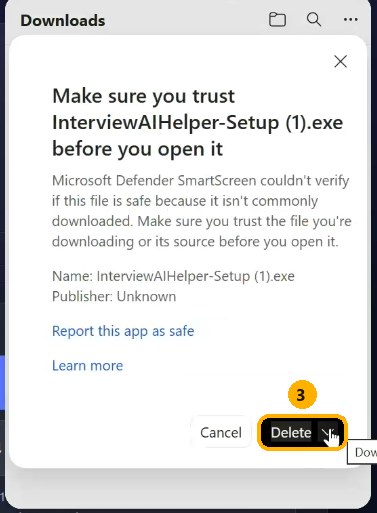
1. Your browser says the file “isn’t commonly downloaded”
Microsoft Edge — keep the file in two clicks:
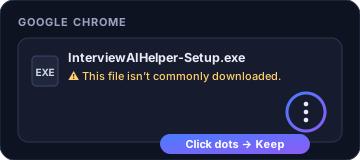
Google Chrome — click the three dots on the right of the file in the downloads bar, then choose Keep.
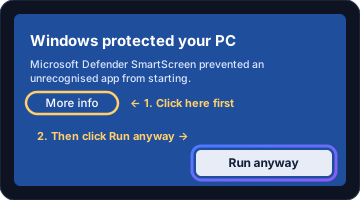
2. Windows says “Windows protected your PC”
Open the downloaded InterviewAIHelper-Setup.exe (press Ctrl+J in your browser to find it). If the blue box appears, click More info, then Run anyway.
3. The file will not open at all
Message “An Application Control policy has blocked this file”? That laptop has strict security (such as Smart App Control, common on office laptops). Use a personal laptop, or contact us and we will help.
4. Your antivirus removed or blocked it
Open your antivirus, look in Protection history or Quarantine, and choose Restore or Allow for InterviewAIHelper, then run the installer again. Only do this for a file you downloaded from interviewaihelper.com.
5. After it installs
Still stuck? Message us and we will help you install it.
WhatsApp / phone: +91 87935 52726
Email: support@interviewaihelper.com
Hours: Monday–Saturday, 10:00–19:00 IST